
Swatches
Create and manage swatches for your products
Overview
The Swatches page allows you to create and manage swatches for your products.
There are two sections to the swatches page:
- Settings tab for configuring global swatch Settings
- Swatches tab for managing swatches per manufacturer
Swatch Settings
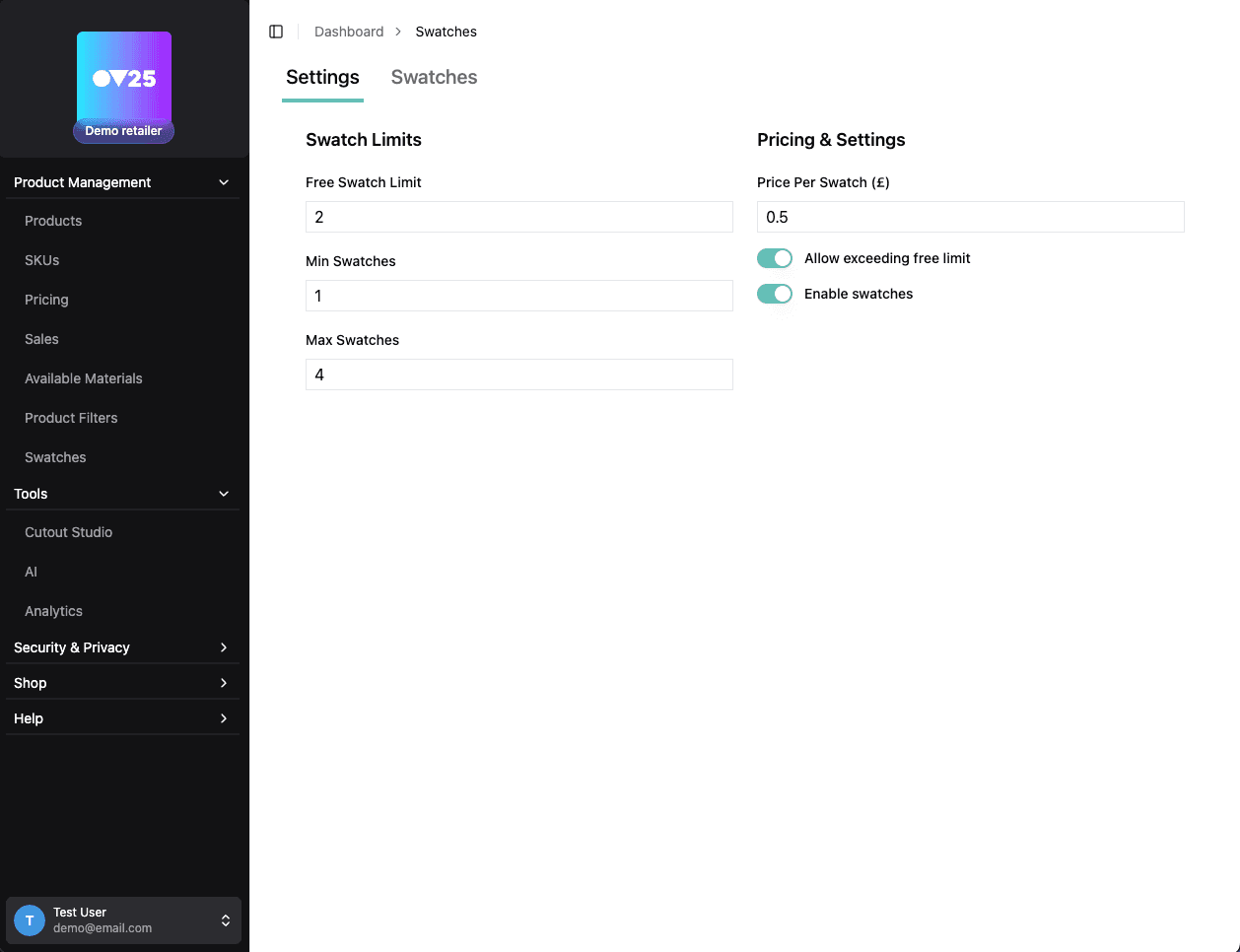
Swatch Limits
Free Swatch Limit - This is the number of swatches that are free to order. Any above this limit will be charged at the price per swatch.
Min Swatches - This is the minimum number of swatches that must be ordered. Any less and the order cannot be placed.
Max Swatches - This is the maximum number of swatches that can be ordered. The user cannot add more than this to their swatchbook/cart.
Pricing & Settings
Price Per Swatch - This is the price per swatch. This is charged for any swatches ordered above the free limit.
Allow Exceeding Free Limit - This allows the user to order more swatches than the free limit. The user is still limited by the max swatches limit.
Enable Swatches - This enables swatches globally.
Swatches
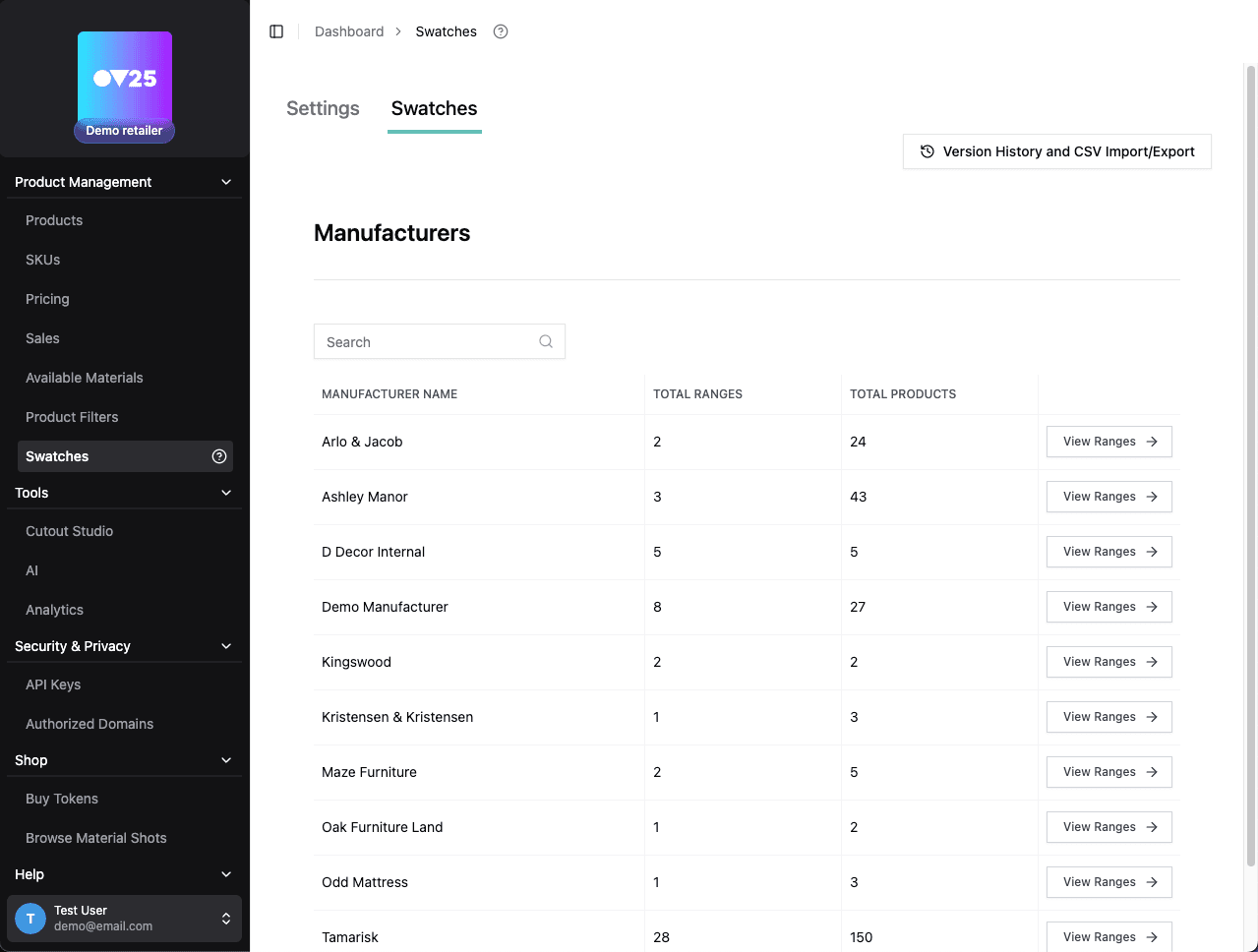
Swatches are created per manufacturer - first select a manufacturer.
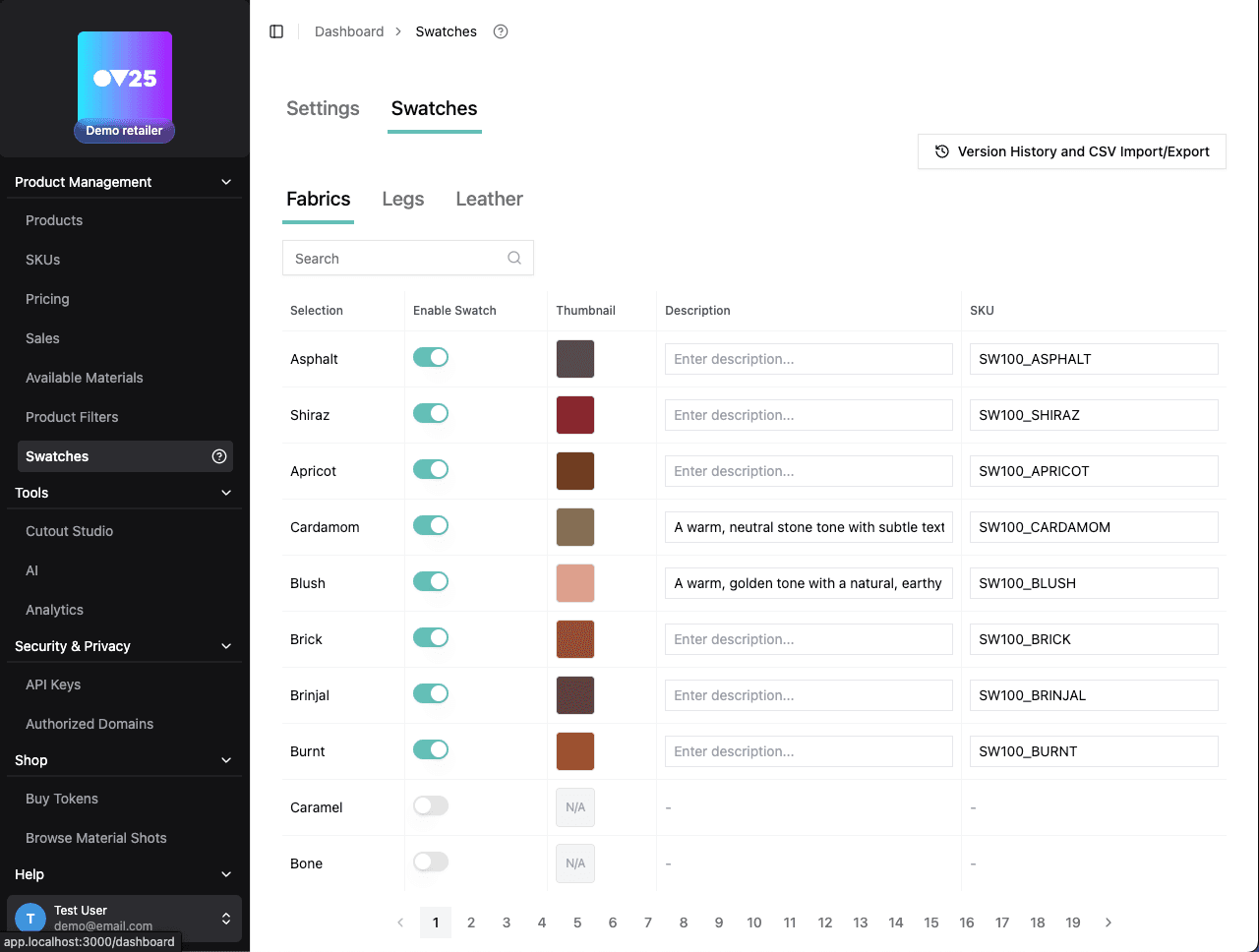
After selecting a manufacturer, you will be shown tabs with the Options for that manufacturer. Below you will see a table of all selections for that option.
You can enable or disable swatches for each selection. When enabled, you can add a description for each swatch. This description can be displayed to the customer when they are browsing swatches.
You can also add a SKU for each swatch. Swatches will use this SKU in the cart and checkout process. If a SKU is not provided, the swatch will use the corresponding SKU from the Pricing & SKUs page.
If a swatch is enabled, it will be available for the customer to order.
📤 Export Swatches as CSV
You can export the current swatch state as a CSV file. This will include all swatches across all manufacturers, displayed in an easily editable format.
Export a file by clicking "Version History and CSV Import/Export" in the top right corner, then clicking "Export as CSV". A download will start.
The csv file can be edited and then reimported to update the swatch state.
This is useful if you prefer to make swatch changes in a spreadsheet program like Excel, or if you want to use swatch data for some external process.
📥 Import Swatches from CSV
After editing the csv file, you can import it to update the swatch state.
Only edit the swatch values, descriptions, and SKUs. Do not edit the structure of the file - this will cause the import to fail.
To import a file, click "Version History and CSV Import/Export" in the top right corner, then click "Import from CSV". Select the file you want to import and wait for the import to complete.
📚 Version History
OV25 automatically creates backups when you upload a csv file. You can view the version history by clicking "Version History and CSV Import/Export" in the top right corner.
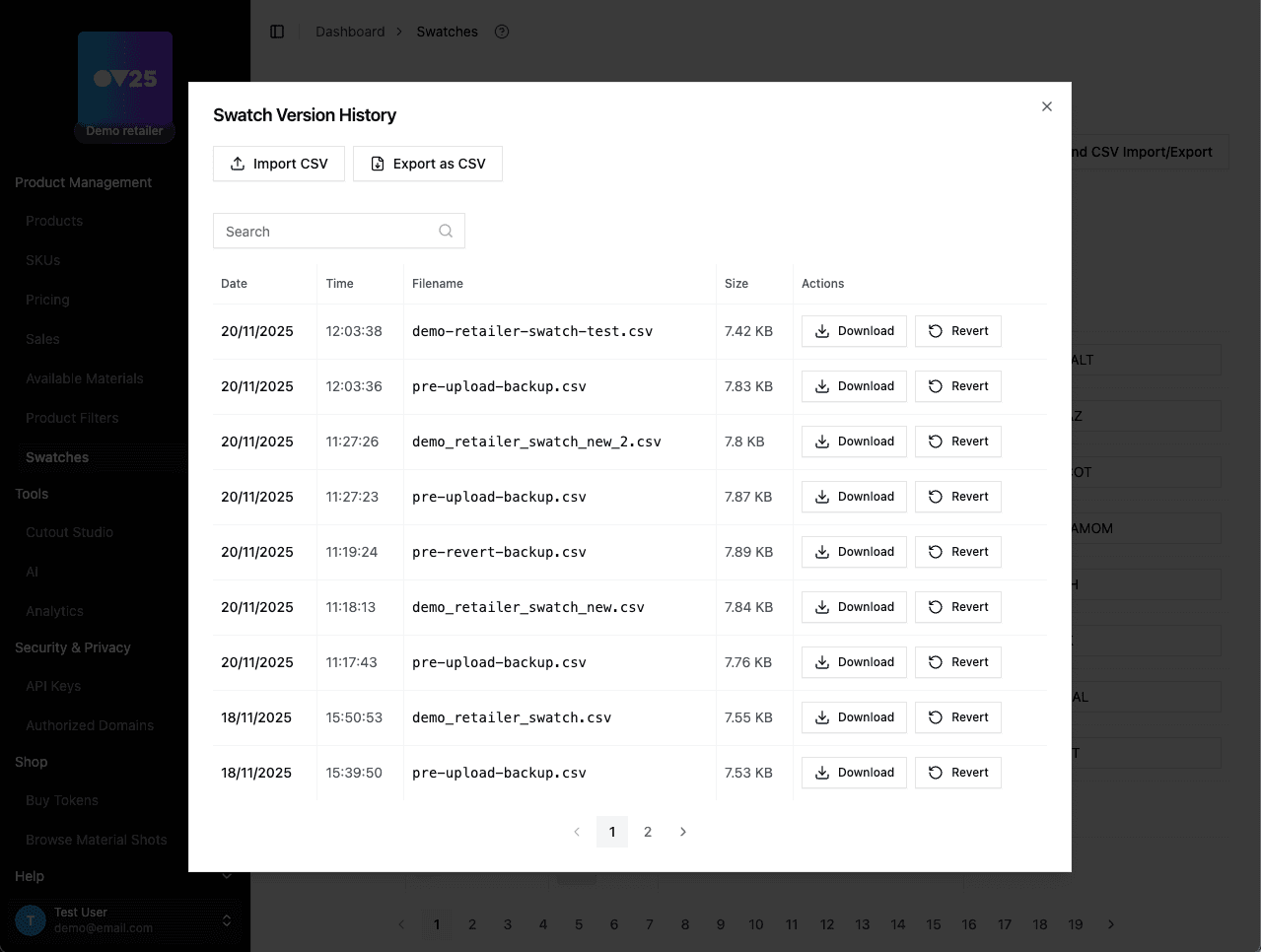
When you upload a .csv file, a backup is made of the current swatch state before the upload, and then a backup of the new swatch state after the upload.
You can revert to a previous version by clicking the "Revert to Version" button on the version history table. A backup of the current state will be made before the revert.
You can download a previous version by clicking the "Download" button on the version history table.
After you have setup swatches, you can display them on your e-commerce platform. See the relevant part of the Integration Guide for information about how they can be displayed on your e-commerce platform.