logo
Product Management

SKUs

Create and manage product variants with detailed SKU management

💡 Understanding SKUs

SKUs (Stock Keeping Units) are human-readable identifiers for ranges, products or selections.

A configured product will have a composite SKU indicating the full configuration of the product. This is a concatenation of the range SKU, product SKU, and all selection SKUs.

This composite SKU is used to identify the product in configurators and e-commerce platforms.

For example CLEO/3-SEATER-SOFA/BLACK-LEATHER/OAK could indicate a 3 Seater Sofa from the Cleo range, with a black leather fabric and oak legs.

Each manufacturer has separate SKUs. Duplicating SKUs across manufacturers is allowed because the composite SKUs will still be unique.

✏️ Creating SKUs

On the SKUs page you must first select a manufacturer.

SKU Dashboard

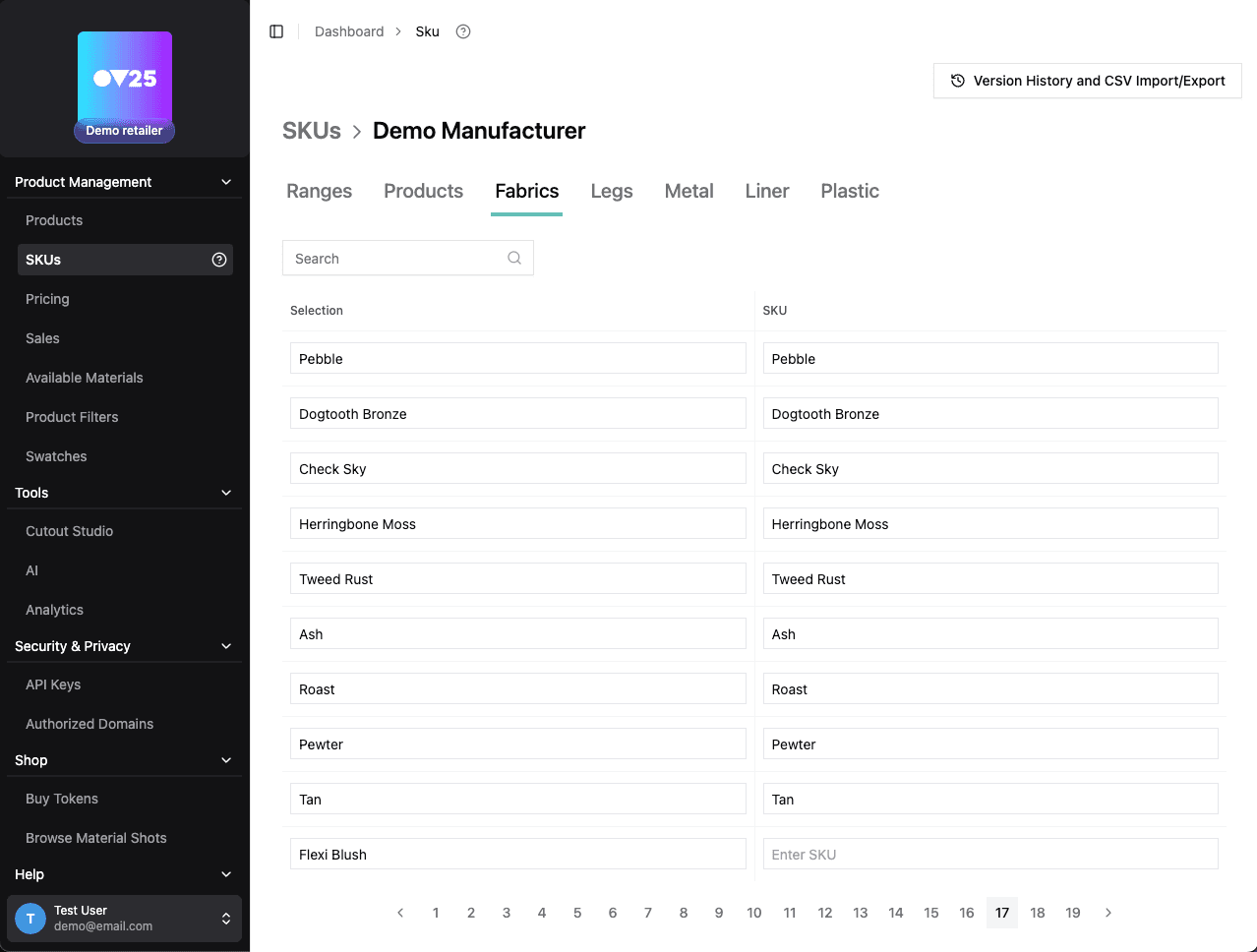
Once selected, you will be shown a table of all SKUs for that manufacturer. There will be a tab for Ranges, Products, and one for each Option across your products with that manufacturer.

SKU Editing

In the table it shows the "Selection Name" on the left and the "SKU" on the right.

The original selection name comes from the manufacturer, but you can whitelabel them however you choose in this screen.

The SKUs are defined by you, and will only apply within this manufacturer.

📤 Export SKUs as CSV

You can export the current SKU state as a CSV file. This will include all SKUs across all manufacturers, displayed in an easily editable format.

Export a file by clicking "Version History and CSV Import/Export" in the top right corner, then clicking "Export as CSV". A download will start.

The csv file can be edited and then reimported to update the SKU state.

This is useful if you prefer to make SKU changes in a spreadsheet program like Excel, or if you want to use SKU data for some external process.

📥 Import SKUs from CSV

After editing the csv file, you can import it to update the SKU state.

Only edit the SKU values and selection names. Do not edit the structure of the file - this will cause the import to fail.

To import a file, click "Version History and CSV Import/Export" in the top right corner, then click "Import from CSV". Select the file you want to import and wait for the import to complete.

📚 Version History

OV25 automatically creates backups when you upload a csv file. You can view the version history by clicking "Version History and CSV Import/Export" in the top right corner.

Version History

When you upload a .csv file, a backup is made of the current SKU state before the upload, and then a backup of the new SKU state after the upload.

You can revert to a previous version by clicking the "Revert to Version" button on the version history table. A backup of the current state will be made before the revert.

You can download a previous version by clicking the "Download" button on the version history table.


🚀 Next Steps

After setting up your SKUs:

  1. Configure Pricing for your SKUs → Pricing Management

On this page