
Sales
Configure and schedule sales for your products
The Sales Page allows you to configure and schedule sales and promotions for your products.
Sales can be global, or specify which manufacturer, range, or product the sale applies to.
Sales can be given a start and end date.
You can have one active sale at a time - this sale will automatically apply between the start and end dates.
🎯 Getting Started
When loading the Sales page, you will see a table of sale history. This shows the name, start date, and end date for all sales.
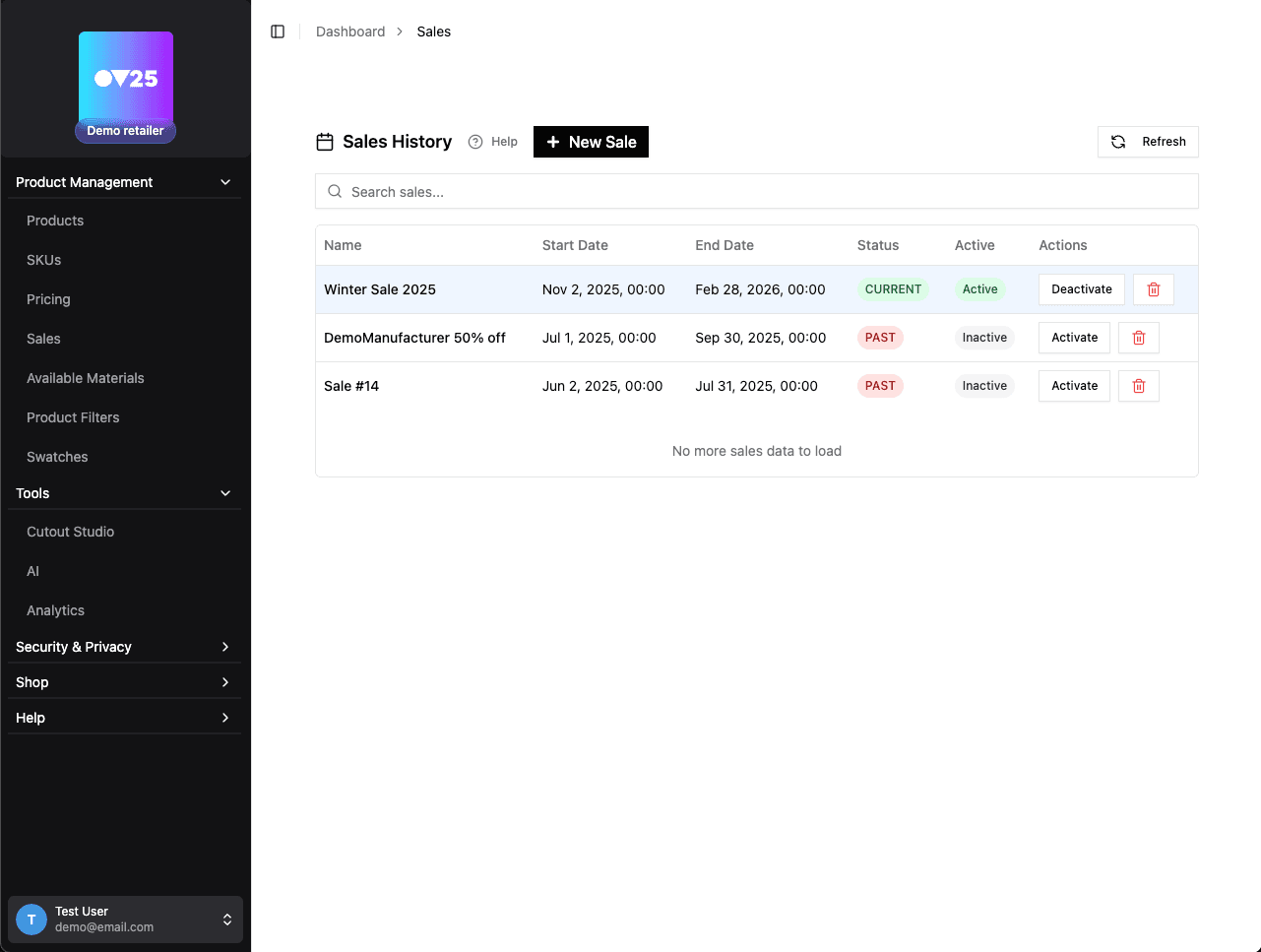
The Status columns shows whether the sale is in the PAST, CURRENT or FUTURE. Active sales will only apply when this is CURRENT.
The Active columns shows which sale is currently active. You can only have one active sale at a time.
The Actions column shows the actions you can take for the sale. You can activate, deactivate, edit, or delete the sale.
When activating a sale you can optionally set a new start and end date for the sale.
🛒 E-Commerce Integration
Sales are automatically applied to the e-commerce platform when the sale is active. It will show the discounted pricing in the configurator, and the discounted pricing will be applied to the cart and checkout.
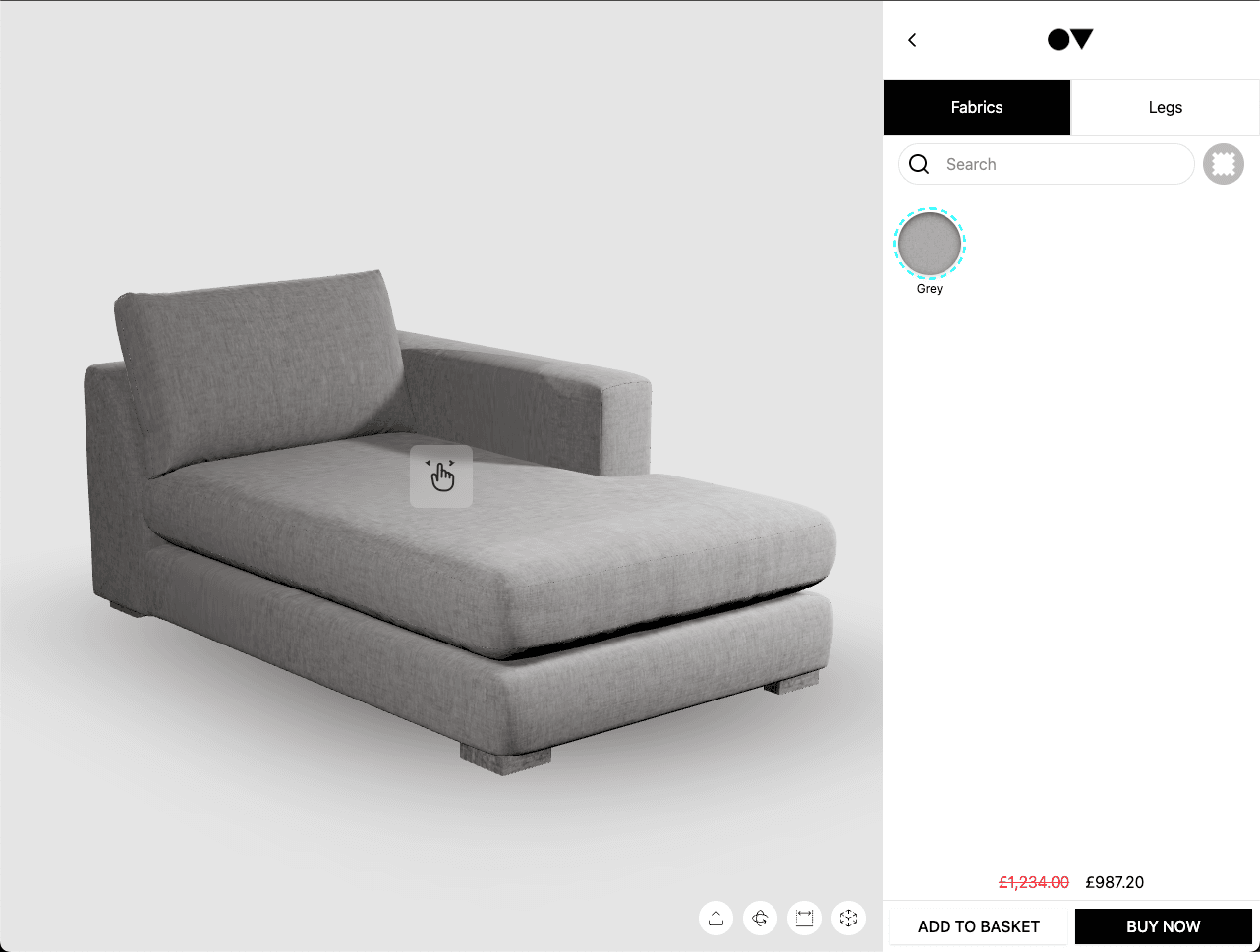
For more information about how sales are displayed, see your e-commerce platform's documentation.
📊 Sale Configuration
When creating a sale you have the option to apply discounts globally or to specific manufacturers, ranges, or products.
Products will receive only the most specific discount applied to them. For example, if a product's range has a sale, and there is also a sale on the product's manufacturer, the product will receive the range sale.
📅 Creating a Sale
To create a sale click the "New Sale" button at the top of the page. You will be shown a form to configure the sale.
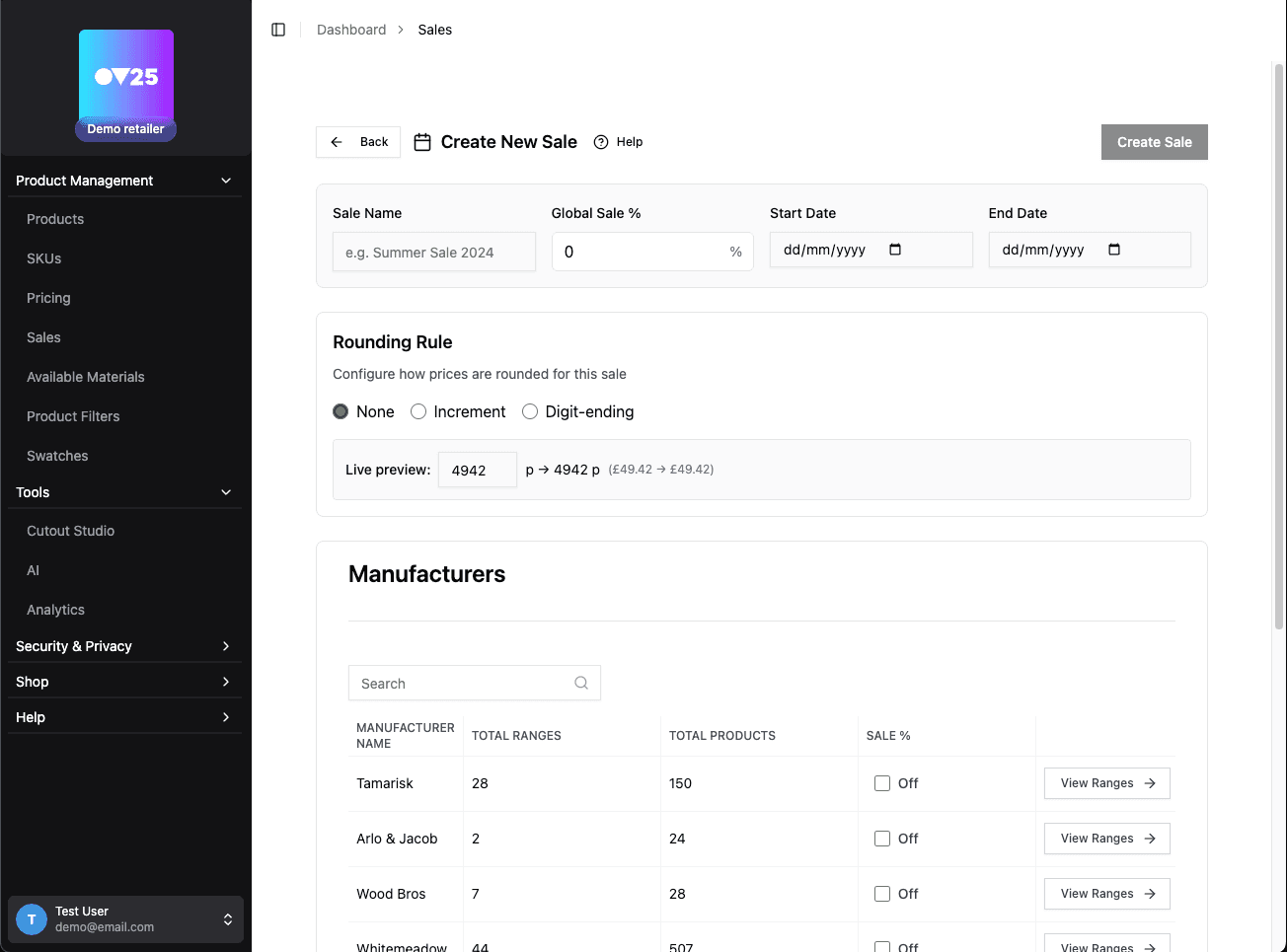
🏷️ Sale Name
This is a human readable name for the sale. This is used to identify the sale in the dashboard. It does not show to the customer.
🌍 Global Sale %
This is the percentage discount to apply to all products. It is not necessary to set this. If a product has any other sale applied to it, it will not receive the global sale.
▶️ Start Date
This is the date the sale will start. It will start at 00:00 on the given date.
⏹️ End Date
This is the date the sale will end. It will end at 00:00 on the given date.
🔢 Rounding Rule
You can configure a rounding rule to apply to the sale. This can be used to standardise price endings - for example making all prices match a specific format - £XX.99, £XX.95, £XX.00
You can test out the rounding rule by entering a price in the "Live preview" field. This will show you exactly what a discounted price will be rounded to.
⬆️ Increment
Selecting Increment for your rounding rule will round the price to the nearest multiple of the value you set.
Example 1: setting the increment to 5 will allow any price ending in a multiple of 5 (£10.00, £10.05, £10.10, etc.)
Example 2: setting the increment to 200 will allow any price ending in a multiple of 200 (£2.00, £4.00, £10.00, £12.00, etc.)
The Direction can be set to Nearest, Up or Down. This will round the price to the nearest multiple of the increment, up to the nearest multiple, or down to the nearest multiple respectively.
↔️ Digit-ending
Selecting Digit-ending for your rounding rule will round your price to the nearest digit-ending that you specify.
For example, setting the digit-ending to 99 rounds all prices so they end in 99 (£10.99, £15.99, £340.99, etc.)
The Direction can be set to Up or Down. This will specify whether to round up or down to the nearest digit-ending.
The Scope can be set to 1, 10, 100, 1000 or 10000 (corresponding to £0.01, £0.10, £1.00, £10.00, or £100.00). Scope rounds the price to the nearest multiple of the scope value before applying the digit-ending rule.
Example: With digit-ending 99, direction Down and scope 100 (£1.00), a price of £10.53 first rounds to £11.00, then to £10.99. Without scope, it would round down to £9.99.
🎯 Applying targeted sales
To apply a targeted sale to a manufacturer, range, or product, use the table in the bottom half of the page. In here you can select a manufacturer, range, or product and set the sale percentage for it.
To activate or deactivate a sale, click the checkbox in the "Sale %" column and enter a sale percentage.
You can set as many or as few sales as you need to - at any level of specificity.
If a product has multiple sales that are applicable to it, it will only have the most specific sale applied to it. Product sales are the most specific, followed by range sales, then manufacturer sales.
💾 Saving and Activating a Sale
When you have configured your sale, you can save it by clicking the "Create Sale" button.
This will finalise all sale values and give you the option to activate the sale.
🚀 Next Steps
After setting up your sales:
- Set up Product Filters → Product Filters
- Create Swatches → Swatches