
Product Filters
The Product Filters page allows you to setup filters for your products, allowing customers to sort and filter selections in the configurator.
Filters are done on a manufacturer level, so first must you select a manufacturer.
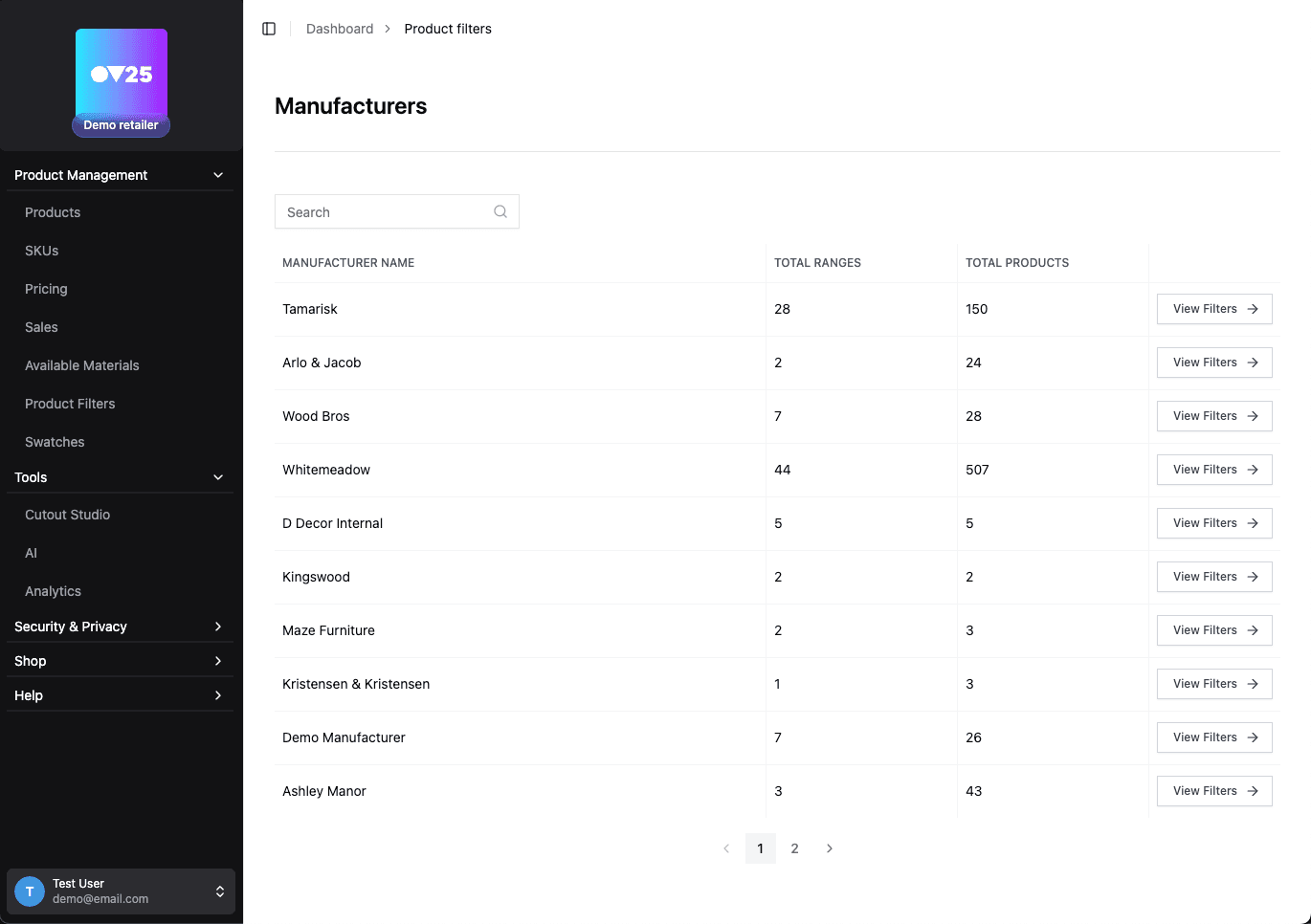
After selecting a manufacturer, you will be shown a table of all options for that manufacturer.
Each option has its own set of filters.
You can add any number of filters for each option.
Each selection has a set of tags for each filter.
✏️ Adding a Filter
To add a filter, first choose an option from the tabs above the table.
Then click the "Add New Filter" button in the table header. A new column will appear. You can click in the header to edit the filter name, or click the trash icon to delete the filter.
Now that the filter has been created, you can add tags for each selection. Select the dropdown next to the selection name, and then either select an existing tag, or add a new one. You can select multiple tags for each selection.
Below is an example setup of filters. The first image shows the filters in the table, and the next two images show the filters in the configurator. (Note: Pluto fabrics don't show in the configurator as they are not available on this specific product.)
 Example setup of filters.
 User selects which tags they want to see from the filters.
 The displayed selections are filtered based on the tags.