
Pricing
The Pricing & SKUs Page allows you to set up pricing for your products. You can give each product or selection a direct price, or use reusable price grades and set what each grade costs on each product.
Pricing is configured at the SKU level. SKUs are edited directly in the pricing table - see SKUs for how they work.
🎯 Price Grades
A price grade is a reusable pricing label (for example "A", "B" or "Premium") that can be applied to multiple selections. Each grade then has its own price on each product.
An example of when this is useful is if you have a whole range of fabrics that are the same price - you can apply the same grade to all of them and then update the price in a single place.
If a product or selection only ever has one price, you can skip grades and enter a direct price instead.
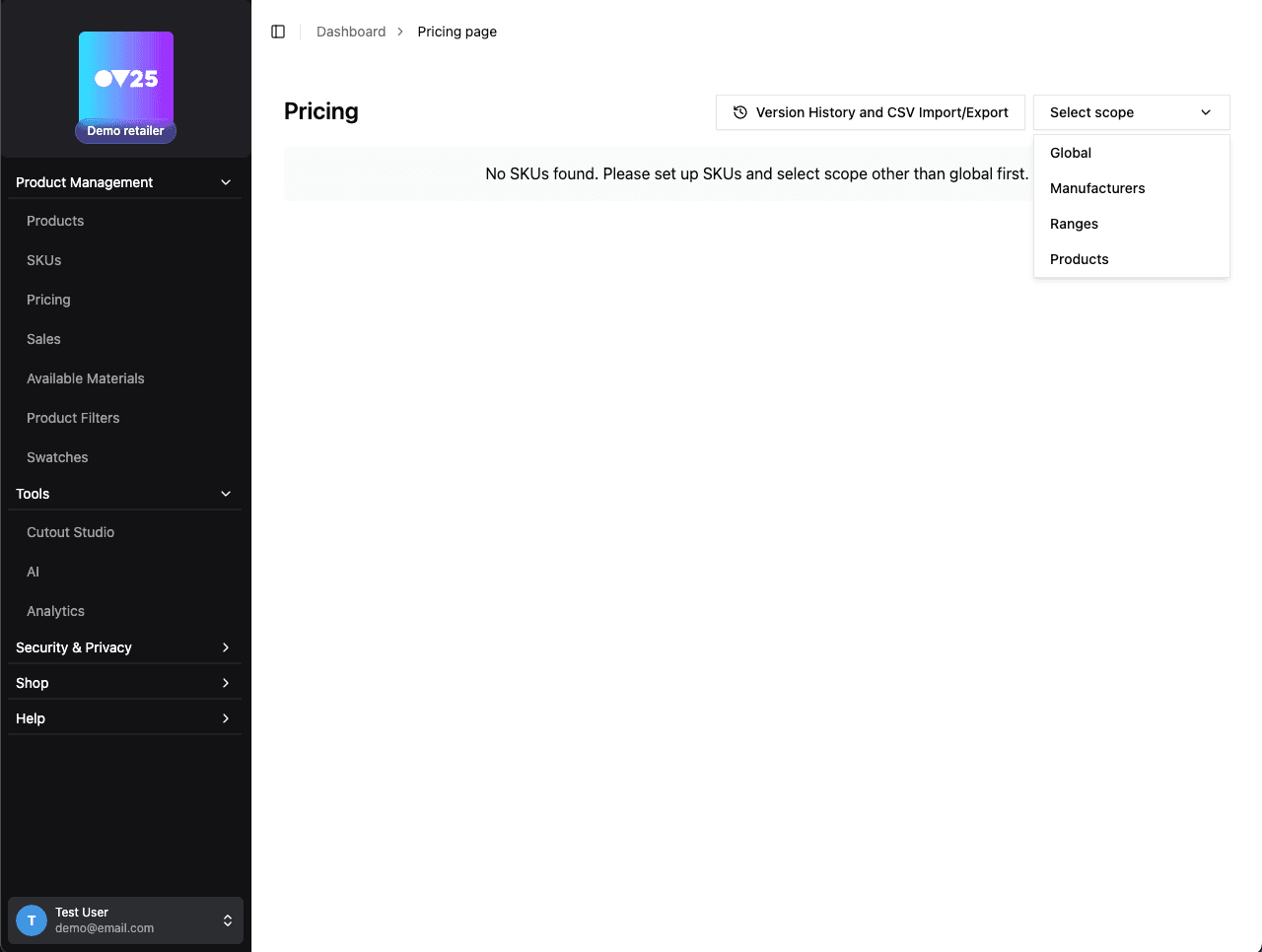
✏️ Setting up Pricing
The page is split into steps, shown as tabs at the top:
1. Give products & variants a price grade
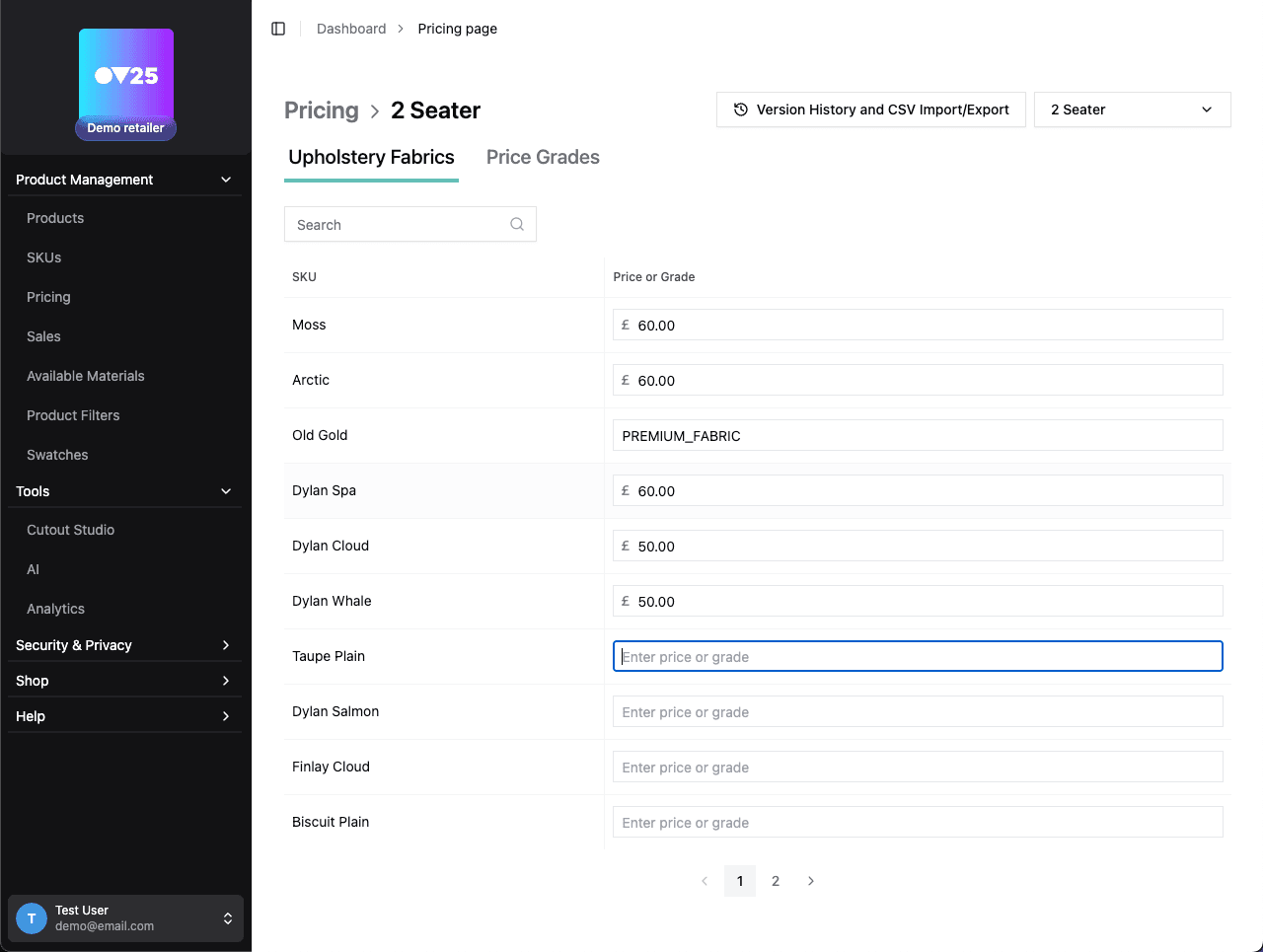
Find the product, fabric, finish, or variant you want to price. The table is grouped by manufacturer and category, with columns for the "Selection" name, its "SKU", and its "Price or Grade".
- Enter a direct price to give that product or selection a fixed price.
- Enter a grade name (e.g. "A", "B", "Standard", "Deluxe") to assign a reusable price grade.
You can also edit SKUs and selection names in this table, and use the search box or the "Open all"/"Close all" buttons to navigate large catalogs.
2. Assign prices to each grade
Once you have assigned grades, open the "Assign prices to each grade" step to set what each grade costs on each product. Products without a grade price will keep their existing direct price or show 0.
Price grades can only be applied once per product. Two variants with grade A that is set to £10 will still only add £10. Set up multiple grades per option if you need this functionality.
3. Add conditional grade assignments (Advanced)
Switching the toggle in the top right from "Simple" to "Advanced" adds a third step: "Add conditional grade assignments". This lets you reassign a grade's value for a specific product when a specific fabric, finish, or variant is selected. Leave a grade blank to use its normal product price.
❓ Need Help?
Click the "Need help? Click here" button in the top right to pick an example pricing model (one fixed product price, one product with many prices, or complex variant pricing). The page will swap in temporary demo data and walk you through the table step by step, then return to your real pricing when the walkthrough closes.
🚀 Next Steps
After setting up your pricing:
- Configure Sales and promotions → Sales Configuration
- Set up Product Filters for price-based filtering → Product Filters
- Create Swatches with price information → Swatches