
Snap2 Products
Turn a Snap2 arrangement into a real product in your catalog
What is a Snap2 product?
If a range has Snap2 enabled, you can arrange its modules into a specific configuration, say a left chaise, an armless middle, and a corner, and save that arrangement as a real product in the range.
The result is a normal product in every way: it appears in your products list, has its own SKU, pricing and dimensions, gets a rendered thumbnail and cutout images, and works in the configurator and AR exactly like everything else in your catalog. The only special thing about it is invisible: its fabric menu stays automatically in sync with the range it was built from, so you never maintain it by hand.
The images on this page are illustrative mock-ups of the flow, not screenshots of a live account.
Where to find Snap2
- Open the Products page from the sidebar.
- Your ranges are listed in the panel on the left of the page. Ranges that have Snap2 enabled show a small 3D node icon on the right of the row, just before the arrow.
- Click that icon to open the Snap2 builder for the range.
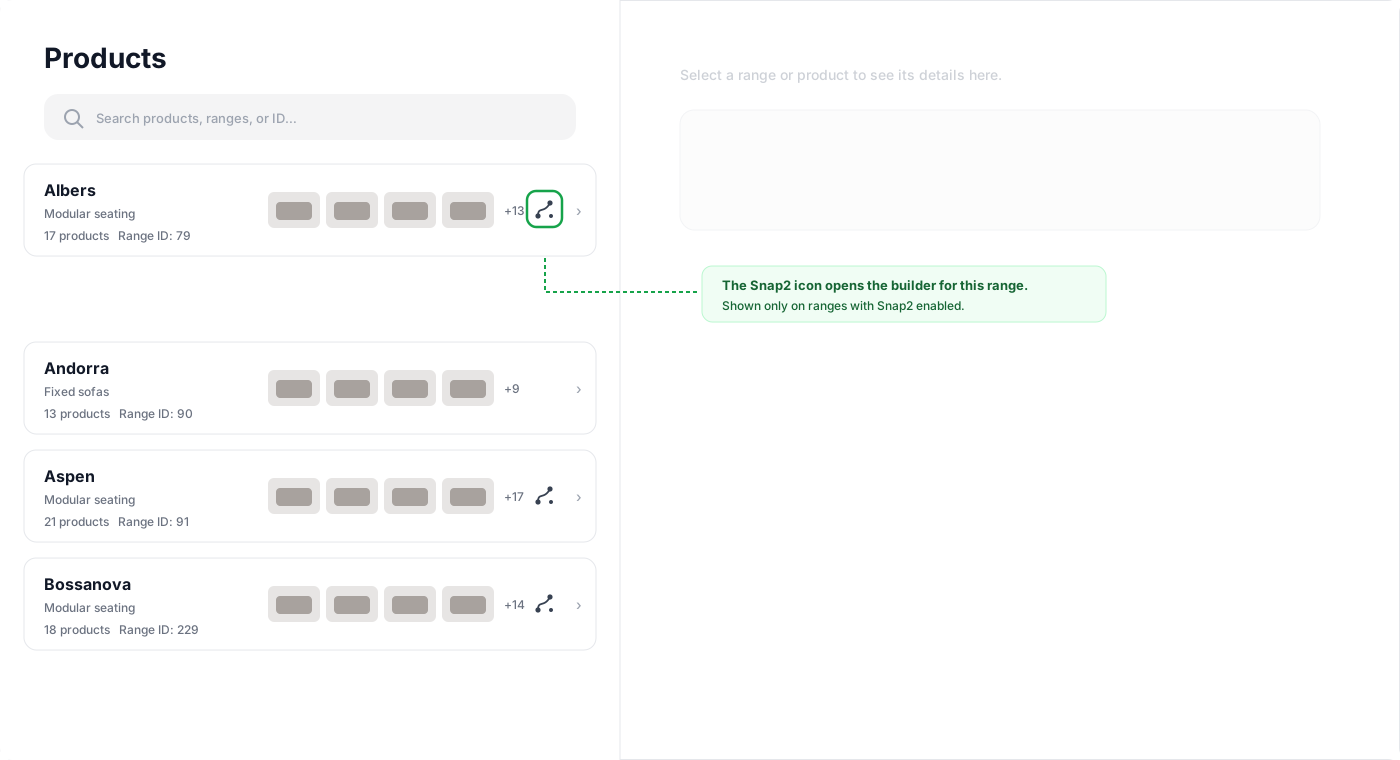
If a range you expect to see the icon on does not have one, Snap2 has not been set up for that range yet.
Creating a product
1. Build the arrangement
Drag modules in from the panel; they snap edge-to-edge. Pick a fabric if you want the product to default to it.
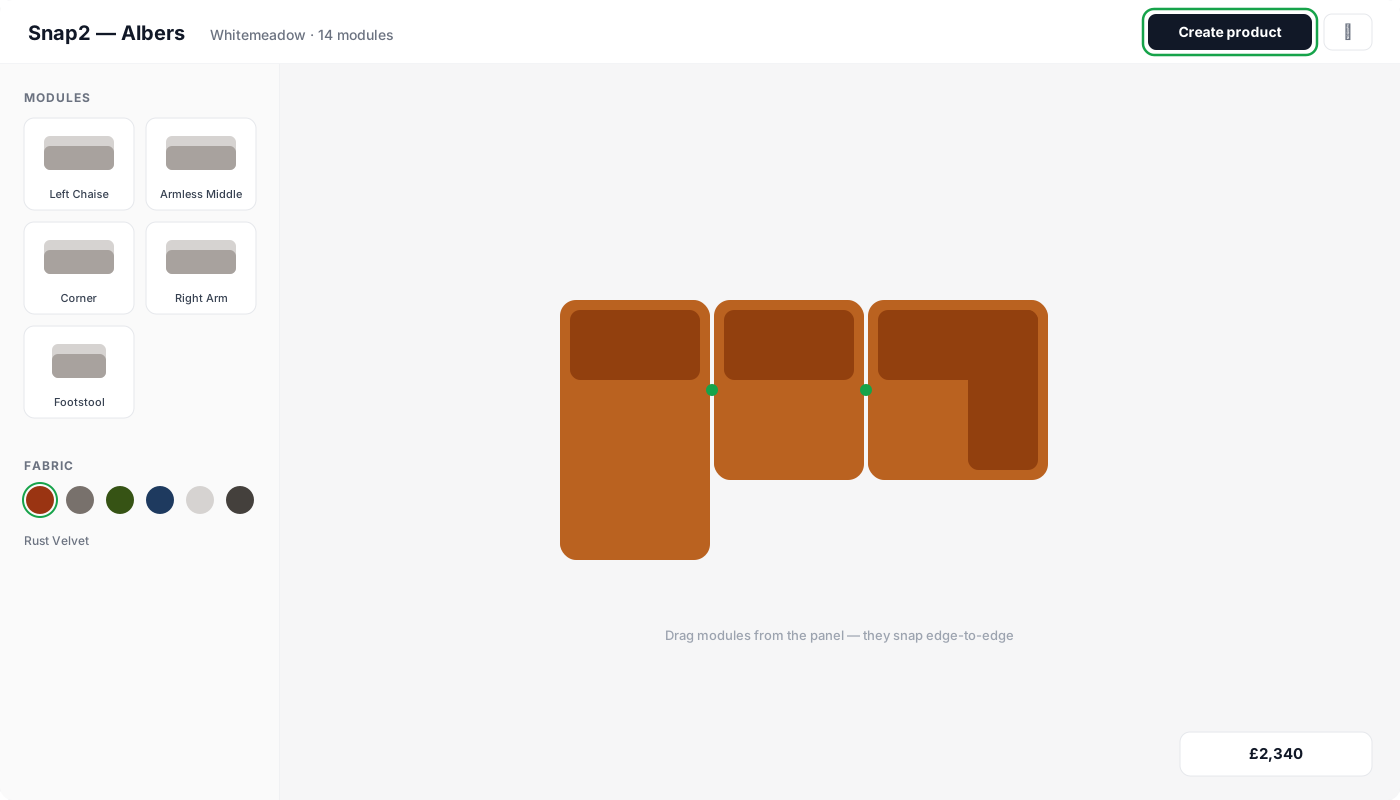
2. Click "Create product"
The Create product button is in the top bar. Give the product a name. If the name is already taken in the range, a numbered variant is used automatically.
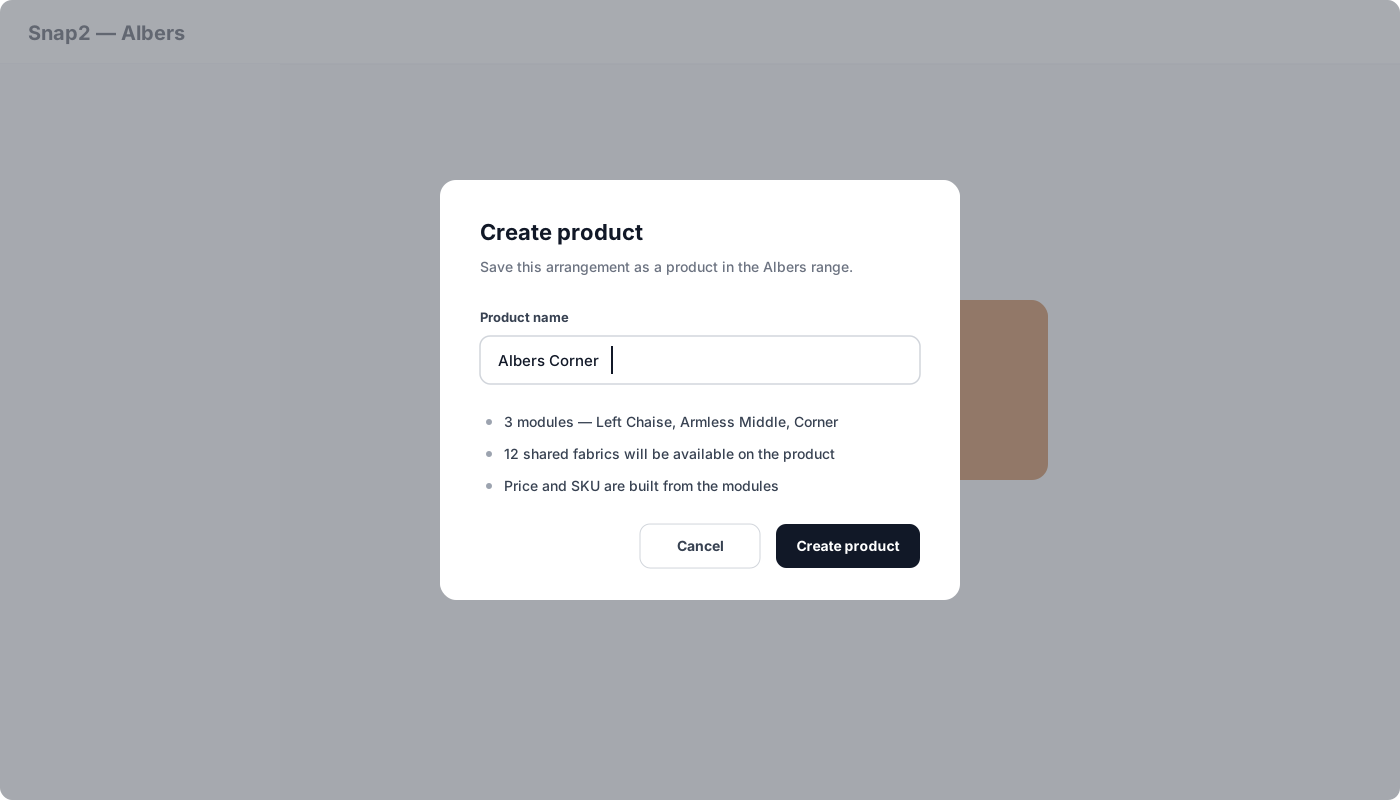
3. Done, it's live
The product is created immediately, inside the same range as its modules, and appears in your products list straight away. There is no separate approval step: the modules it is built from are already published content.
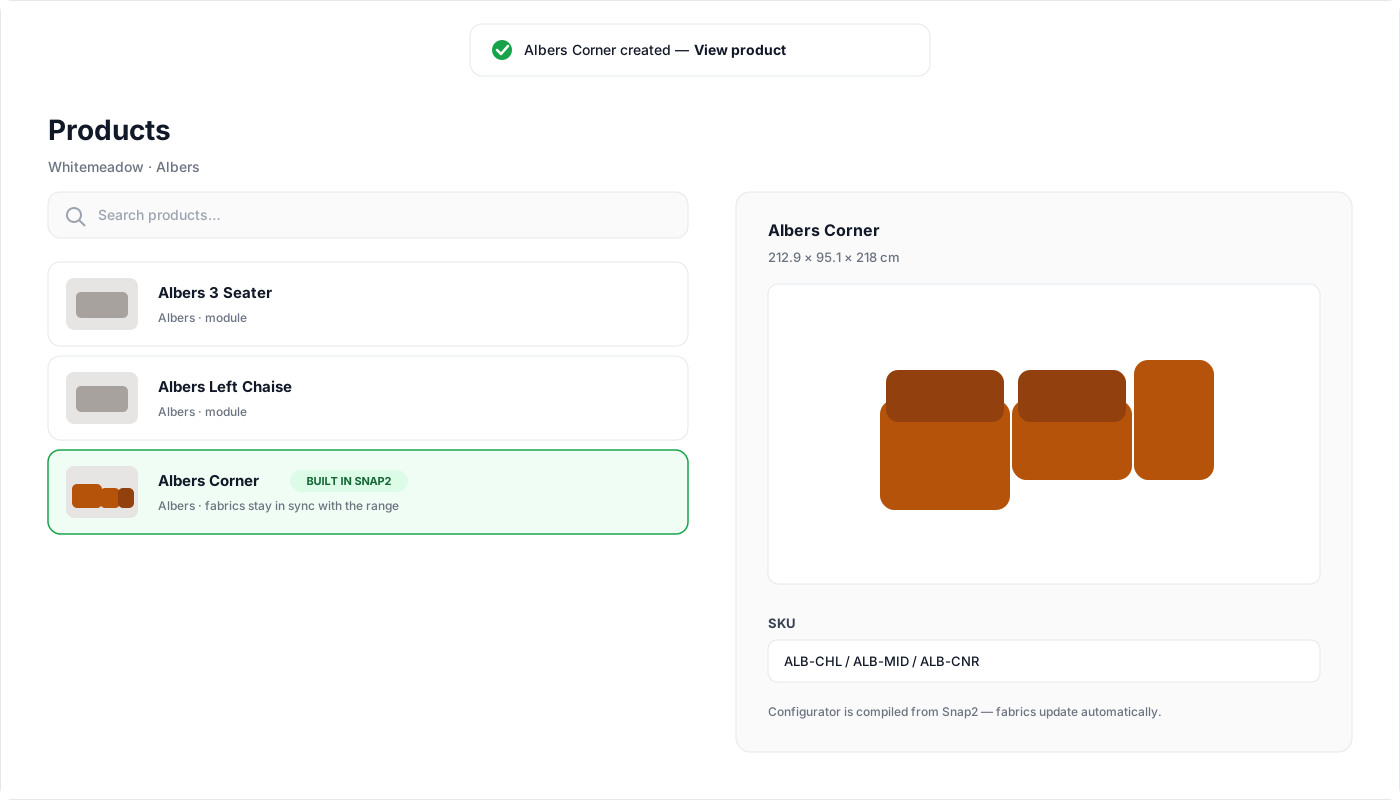
What you get out of the box:
- Dimensions, measured from the assembled arrangement.
- Price, the sum of the modules, including per-module fabric-grade uplifts (a grade upgrade on a six-module sofa correctly charges six modules' worth).
- SKU, built from the module SKUs; editable afterwards like any product SKU.
- Thumbnail: a render job is queued automatically. Depending on the render queue it can take from minutes to a few hours; the image appears on the product card when it completes.
- Cutouts, AR, configurator: all standard behavior.
The fabric menu
A Snap2 product gets one Fabric option, not one per module:
- It contains the fabrics shared by every piece in the arrangement. One selection re-covers the whole product.
- Options that exist on only one module are kept as-is. If your arrangement includes a table whose Table Top has a Wood/Glass choice, that choice survives untouched.
- If the pieces have no fabrics in common, creation is refused with a clear message. A product with an empty fabric menu is never created.
- If the fabric you had selected in the builder is not shared by every piece, the product falls back to a shared fabric and tells you.
Staying in sync
This is the point of the feature: the product's fabric menu is compiled from the range, and recompiled automatically whenever the source changes.
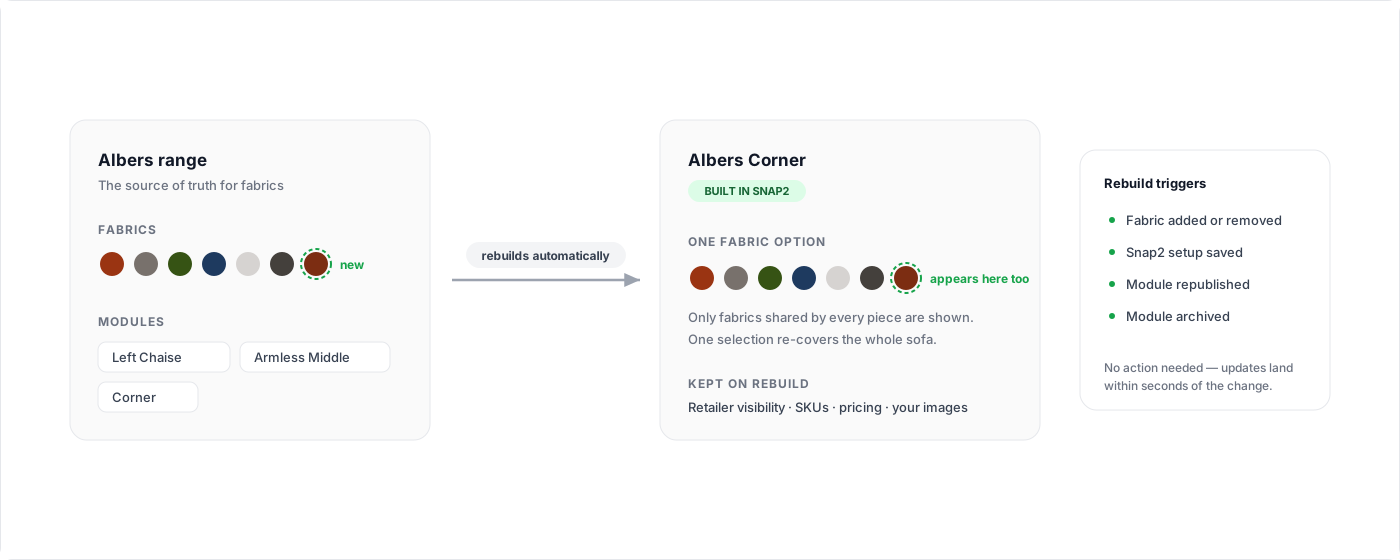
A rebuild happens when:
- fabrics are added to or removed from the range,
- the range's Snap2 setup is saved,
- one of the product's modules is republished (including geometry changes),
- a module is archived or deleted. In that case the product keeps serving its last good state and is flagged for attention rather than breaking.
A new fabric appears on the product once it is available on all of its modules. Through every rebuild, storefront settings survive: which fabrics are shown where the product is shared, SKU overrides, pricing, and any imagery you have uploaded.
Access and visibility
- You can only place modules your account has access to; the builder already shows just those, and the same rule is enforced when the product is created.
- If the range was shared with you, the product you create is available to you immediately, and it is also visible to the account that owns the range, since it is built from their modules.
- Your fabric visibility choices, SKUs and pricing on the new product are yours to manage, exactly like any other product in your list, and they survive every automatic update.
Editing a Snap2 product
Everything merchandising-related is yours to edit as normal: name, images, description, SKU, pricing, sharing.
The configurator itself is machine-managed. If you try to edit it directly you will see "This product is compiled from a Snap2 arrangement, edit the source range". To change the fabrics, change them on the range; to change the shape, create a new product from a new arrangement.
A few deliberate guardrails:
- A Snap2 product can never itself be placed as a module in the builder.
- Range-wide configurator copies skip Snap2 products automatically.
- Copying a Snap2 product to another range produces a disconnected copy that no longer syncs.
Troubleshooting
| Symptom | Explanation |
|---|---|
| "No fabrics are shared by every piece" on create | The modules you placed have disjoint fabric books. Remove the odd one out, or align the range's fabrics first. |
| Thumbnail still blank after creation | The render is queued behind other jobs; it overwrites the card automatically when done. |
| A new range fabric has not appeared on the product | It appears once every module in the arrangement has it; mid-rollout it stays hidden by design. |
| Product flagged as needing attention | A source module was archived or deleted, or its fabrics changed in a way that cannot be applied. The product keeps selling its last good state; resolve the range and it recovers on the next change. |