
Web Configurator
Configure API keys and authorized domains for secure website integration
🔐 Overview
The Web Configurator section allows you to control where your product configurators can be embedded. This ensures your integrations are secure and your configurators only appear on authorized websites.
🔑 API Keys - Generate and manage API keys for secure website integration. These keys authenticate your configurators when they are embedded on your website. You can use one across all sites, or generate a new key for each site.
🌐 Authorized Domains - Control which domains are allowed to embed and display your OV25 product configurators. This security feature prevents unauthorized use of your products on third-party sites.
These two features work together to ensure your configurators are only embedded where you choose.
🔑 API Keys
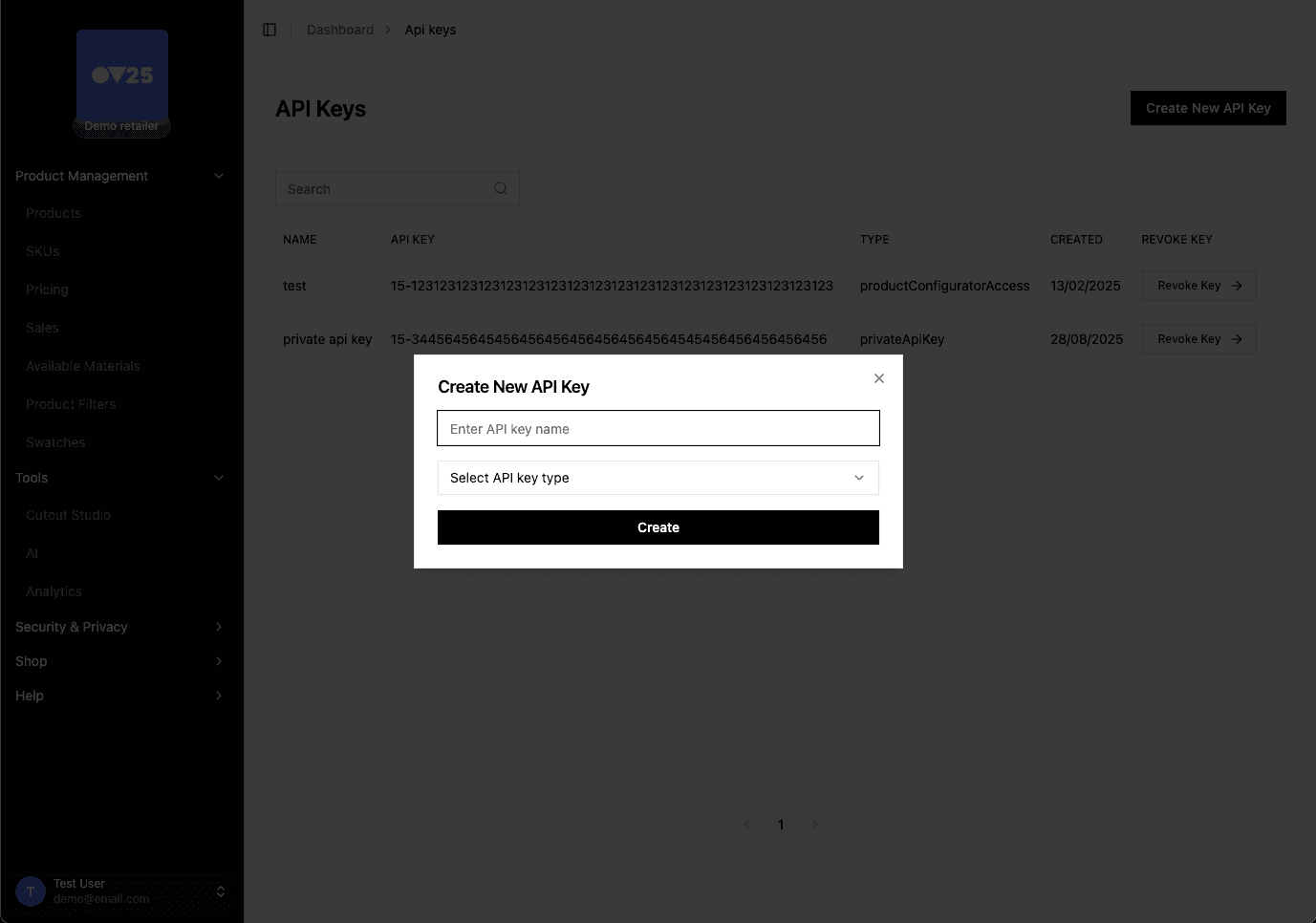
API keys are used to authenticate your configurators when they are embedded on your website. You can use one across all sites, or generate a new key for each site.
🔑 API Key Types
There are three types of API keys:
- Product Configurator Access - Public key used to embed your product configurators on your website.
- Private API Key - Private key used in backends to make API calls to the OV25 API.
- Prophecy Server Key - Private key used only for Prophecy room previews. It cannot read your products or swatches, so a leak costs you previews rather than your catalogue.
➕ Generating a New API Key
- Navigate to the API Keys page
- Click the "Create New API Key" button
- Provide a descriptive name for the key (e.g., "Production Website", "Staging Environment")
- Select the API key type
- Click "Create" - the system will generate a unique API key
- Use your API key when embedding configurators onto your website.
❌ Revoking an API Key
If you need to revoke an API key:
- Locate the key in your API Keys list
- Click the "Revoke Key" button
- Confirm the action
Revoking an API key will immediately disable all applications using that key. Make sure to update your applications with a new key before revoking the old one.
🌐 Authorized Domains
Authorized Domains is a security feature that controls which websites can embed and display your OV25 product configurators. This prevents unauthorized use of your products on third-party sites and ensures your configurators only appear on domains you've explicitly approved.
➕ Adding an Authorized Domain
- Navigate to the Authorized Domains page
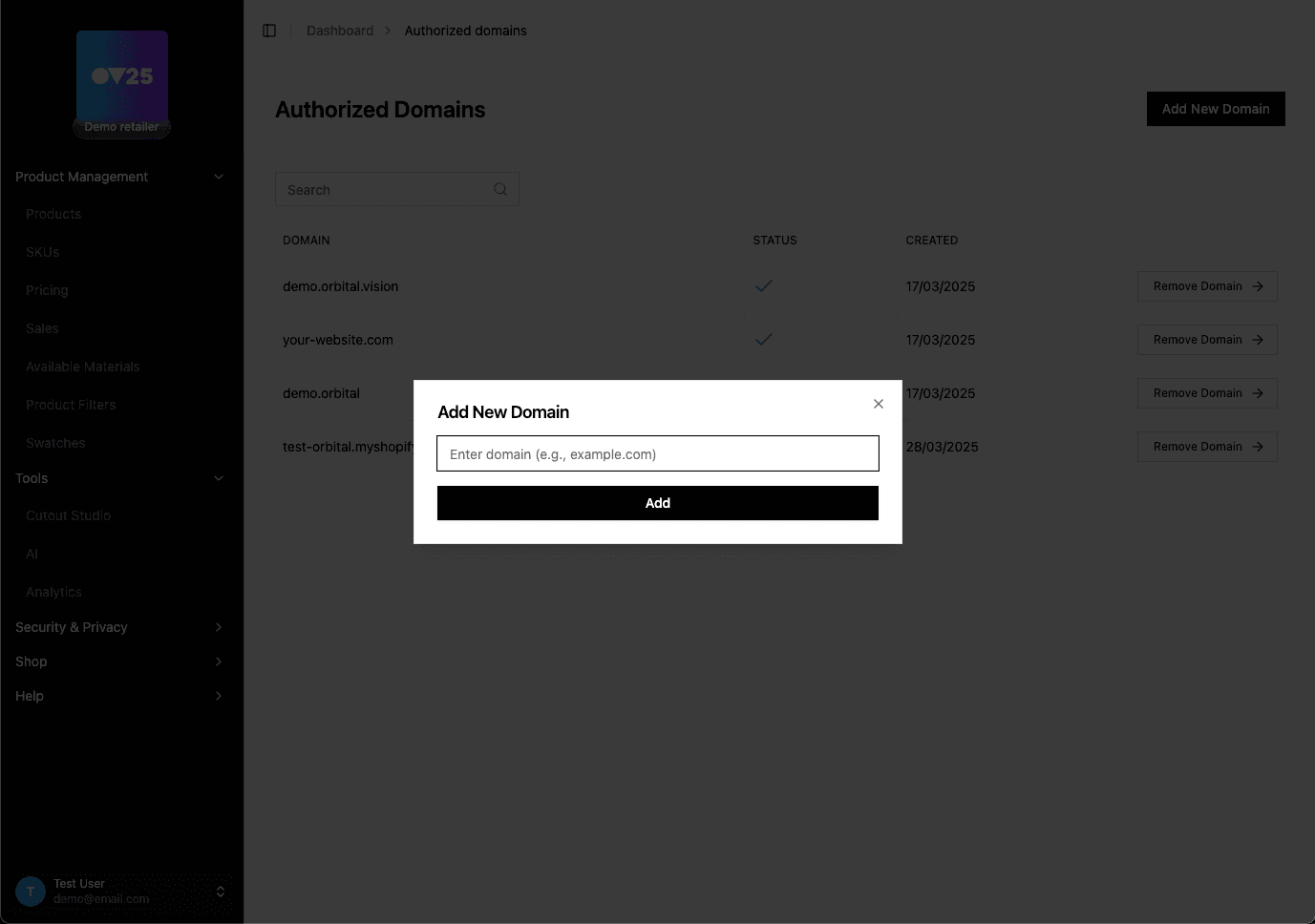
- Click the "Add New Domain" button
- Enter the domain name (e.g.,
example.comorwww.example.com) - Click "Add" to authorize the domain
❌ Removing a Domain
To revoke access for a domain:
- Locate the domain in your authorized domains list
- Click the "Remove Domain" button
Removing a domain will immediately prevent that domain from embedding your configurators. Make sure to notify the site owner if removing an active domain.
✨ Prophecy
Prophecy lets a shopper photograph their room and preview one of your products in it. Orbital switches it on for your account. Everything else on this page is yours to set.
👥 Who can generate
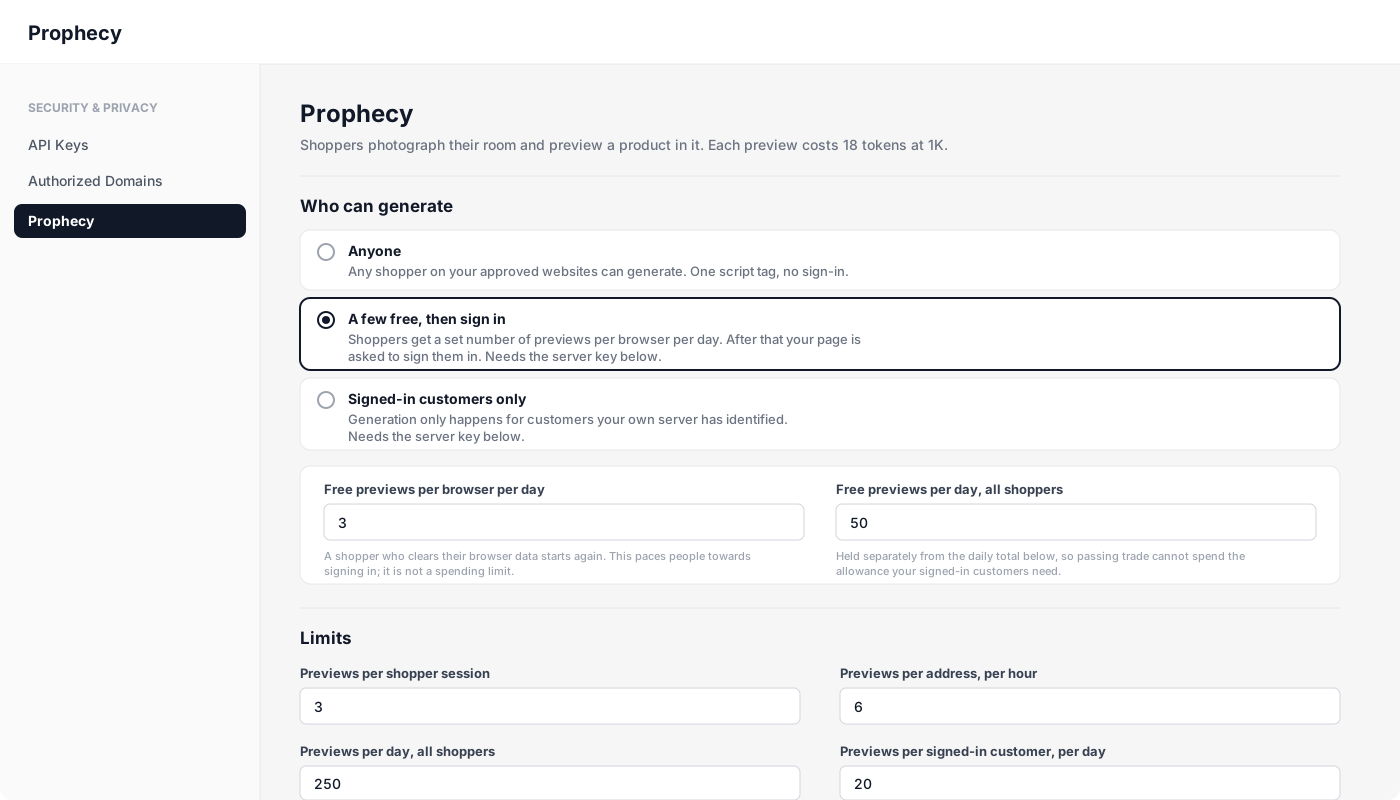
Pick one. Prophecy only ever answers websites on your Authorized Domains list, whichever you choose.
| Option | Who can generate | What your website needs |
|---|---|---|
| Anyone | Any shopper on your approved websites | One script tag |
| A few free, then sign in | Anyone, up to a daily allowance per browser. After that, signed-in customers | The script tag, and a page on your own site that signs the customer in |
| Signed-in customers only | Only customers your own website has signed in | A page on your own site that signs the customer in |
The free allowance moves shoppers towards signing in. It is counted per browser, so someone who clears their browser data starts again. Your spending is capped by the daily limits below and your token balance, not by the free allowance.
The last two options need a Prophecy Server Key, created on the API Keys page. Whoever builds your website puts it in your server settings. It only buys previews, so it cannot read your products or swatches if it leaks. Never put it in a web page.
🗓️ How long we keep photos
| What | Kept for |
|---|---|
| The room photo your shopper uploads | Deleted as soon as their preview is made |
| A photo they upload but never use | Under a day |
| The finished preview | 30 days |
The 30 days is a window for your shopper to come back for their picture, not storage. It does not change if your website saves its own copy. Whoever looks after your website should copy anything you need to keep for longer.
🔢 Limits
| Setting | What it does | Default |
|---|---|---|
| Previews per shopper session | How many one shopper gets before reopening | 3 |
| Previews per address, per hour | Slows down one internet connection | 6 |
| Sessions per address, per hour | One session starts when a shopper opens the preview, not on page load | 30 |
| Free previews per browser per day | Only used by "a few free, then sign in" | 3 |
| Free previews per day, all shoppers | The free share of your day, held apart from the total below | 50 |
| Previews per signed-in customer, per day | Stops one customer spending the whole allowance | 20 |
| Previews per day, all shoppers | Your hard daily ceiling | 250 |
| Previews being made at once | How many can run together before the next one waits | 3 |
| Largest room photo | Bigger photos are refused before anything is generated | 12 MB |
| How long a preview session lasts | A shopper who leaves the dialog open longer starts a new session | 30 minutes |
| How long a phone-upload link lasts | The QR code for sending a photo from a phone | 10 minutes |
Each preview costs tokens from your balance. The page shows the current price at the top. A preview that fails on our side is refunded in full.
Raising the daily limits raises what you can spend in a day. Your token balance is the only limit we cannot change for you.
📚 Related Documentation
- Developer Documentation - Learn how to integrate OV25 into your website