logo
Product management

SKUs

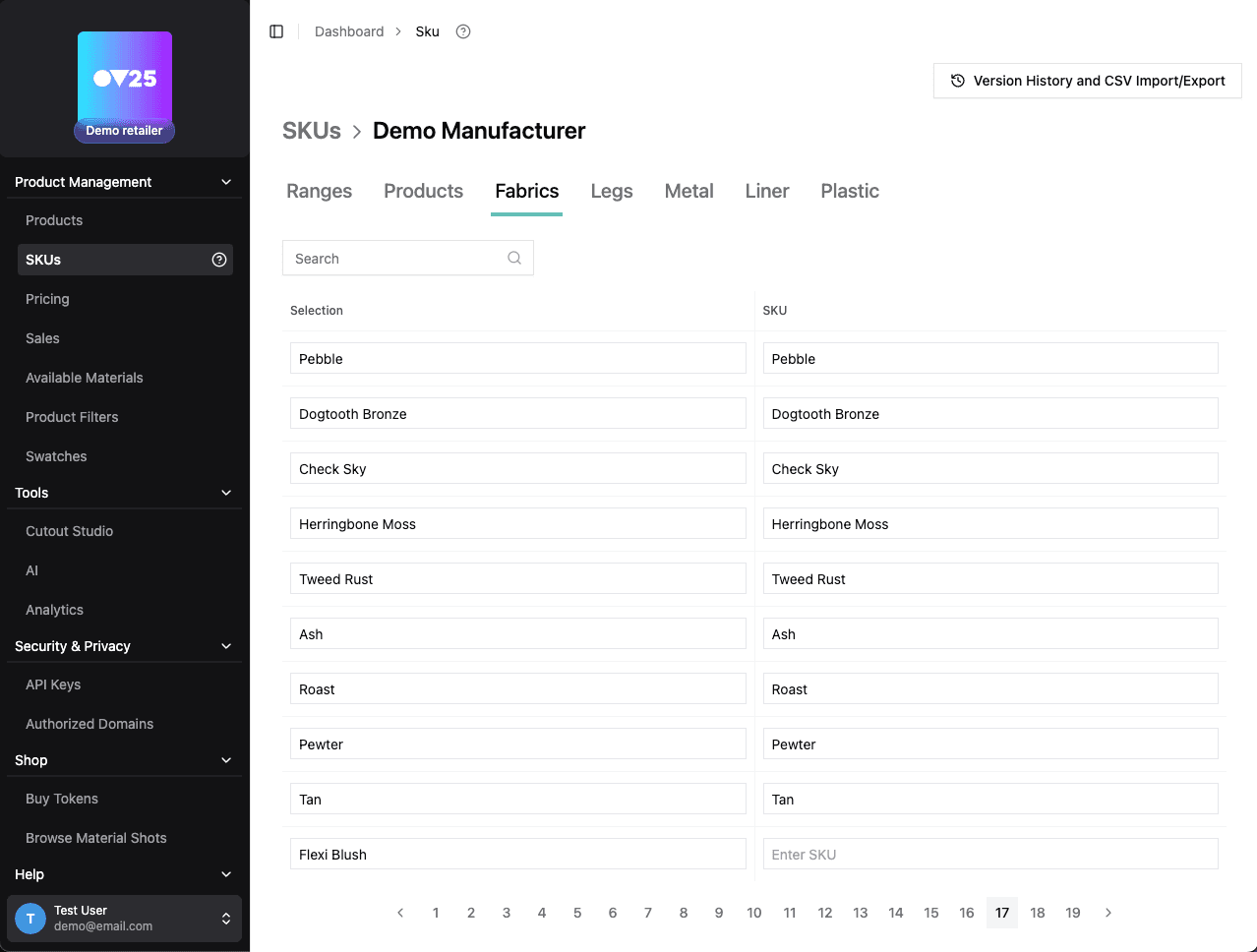
Configure SKUs through selection names mapped to SKU codes

Overview

Manufacturers configure SKUs through a hierarchy of selection names (from the 3D configurator) mapped to SKU codes. Selection names come from configurator options (categories like Fabric, Legs) and their selections (e.g. "Velvet Blue", "Oak Legs"). Ranges and products also have SKU keys.


Selection Names & Categories

Where Selection Names Come From

  • Categories = configurator options (e.g. Fabric, Legs, Base)
  • Selection names = individual choices within each option (e.g. "Velvet Blue", "Oak Legs")
  • These are defined in the product configurator structure (configuratorOptions, configuratorSelections)

Special Categories

  • Ranges – product ranges (e.g. "Windrush"); use internal keys like ORBITAL-RANGE_SECRET-KBJS979d87fy*_range_77
  • Products – products within ranges (e.g. "Windrush - Chair"); use internal keys like ORBITAL-PRODUCT-SECRET-..._range_77_product_603

Internal Keys

  • The InternalKey column in SKU CSV is the lookup key. For configurator selections it equals the selection name. For Ranges/Products it is a system-generated key.
  • Do not change selection names via the SKU CSV. Use the rename CSV export/upload flow instead.

SKU Mapping Structure

The skus table stores:

selectionNameToSku: {
  [category]: {
    [selectionName]: sku
  }
}

Example:

{
  "Fabric": {
    "Velvet Blue": "FAB-VB-001",
    "Linen Grey": "FAB-LG-002"
  },
  "Legs": {
    "Oak": "LEG-OAK-01",
    "Chrome": "LEG-CHR-01"
  },
  "Ranges": {
    "ORBITAL-RANGE_SECRET-..._range_77": "RNG-WINDRUSH"
  },
  "Products": {
    "ORBITAL-PRODUCT-SECRET-..._range_77_product_603": "PRD-WIN-CHAIR"
  }
}

SKU CSV Import/Export

Export (Generate SKU CSV)

  1. Go to Dashboard → SKU (manufacturer or retailer)
  2. Click Export CSV or Generate SKU CSV
  3. File format: {org-name}-ov25-sku-sheet-{date}.csv

CSV Format

# SKU Export Data
# Generated: ...
# INSTRUCTIONS: Only modify the SKU column or this tool will break/not work.
# INSTRUCTIONS: Selection names must be changed through the re-name CSV export/upload.

# ======= MANUFACTURER: Demo Manufacturer (ID: 17) =======
Manufacturer ID,Category,Selection,SKU,InternalKey

17,Ranges,"Windrush","RNG-WIN","ORBITAL-RANGE_SECRET-..._range_77"
17,Products,"Windrush - Chair","PRD-WIN-CHAIR","ORBITAL-PRODUCT-SECRET-..._range_77_product_603"
17,Fabric,"Velvet Blue","FAB-VB-001","Velvet Blue"
17,Fabric,"Linen Grey","FAB-LG-002","Linen Grey"
17,Legs,"Oak","LEG-OAK-01","Oak"

Columns

ColumnPurpose
Manufacturer IDManufacturer org ID (for retailer multi-manufacturer exports)
CategoryOption/category name (Fabric, Legs, Ranges, Products)
SelectionDisplay name (e.g. "Velvet Blue", "Windrush - Chair")
SKUOnly column to edit – your SKU code
InternalKeySystem key for lookup – do not change

Import

  1. Export a CSV first (recommended)
  2. Edit only the SKU column
  3. Upload via Batch SKU Upload (zip containing the CSV)
  4. Import uses InternalKey for matching; selection is display-only

Changing Selection Names

Use the rename flow (ProductFiltersTable / configurator-selections PATCH), not the SKU CSV. Renaming updates configurators, swatches, and swatch SKU mappings.


Workflow Summary

Initial Setup (Manufacturer)

  1. Configurator – Define options and selections in the 3D configurator
  2. SKU mapping – Export SKU CSV, fill in SKU codes, import
  3. Pricing – Export pricing CSV, set prices/grades, import

Retailers

Retailers see manufacturers they have access to. SKU and pricing CSV exports include all accessible manufacturers.


Next Steps

After setting up your SKUs:

  1. Configure PricingPricing

On this page