
Use Fabric Editor to adjust how fabrics and finishes look on your 3D products. Your changes belong to your account’s copy. They do not change the shared original or another account’s fabrics.
Saving affects every product in your account that uses that material, not only the product in the preview.
Choose a fabric and preview product
Fabric Editor is available in retailer and manufacturer dashboards. It lists materials used by your account’s configurators.
- Open Fabric Editor.
- Choose a supplier, then a range and fabric. Use Search everything… to search across the library.
- Wait for the product preview to load.
- Use the product dropdown above the preview to try another product. Use Search products… to find it by name.
The dropdown contains products in your account that use that material. The preview uses the product’s lighting and chooses the options needed to show the material. For example, a wood finish appears on the matching wooden parts.
When you switch fabrics, the editor keeps the same product if it supports the next fabric. Otherwise, it uses a remembered or another suitable product. Choosing a preview product does not limit where a saved change applies.
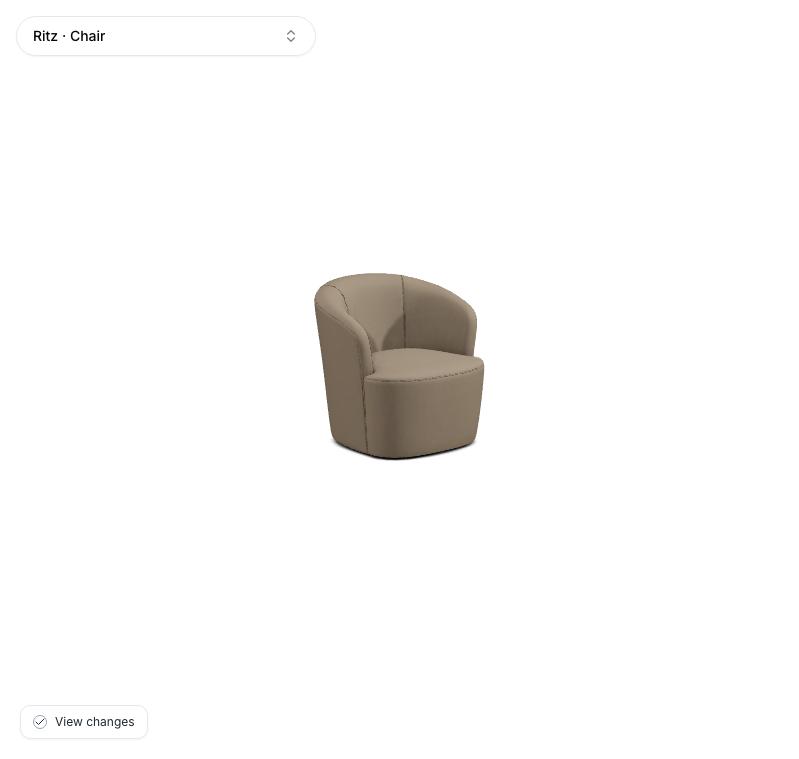
Choose a product that uses the fabric, then compare its appearance in the preview. This demo capture does not show a saved change.
Adjust the appearance
Move a slider to preview its effect. Changes are not saved until you choose Save draft or Save changes.
Use View changes below the product to compare your adjustments with the original. Turn it back on to continue editing.
Colour
| Control | What it changes |
|---|---|
| Colour | Shifts the fabric’s colour. |
| Warmth | Moves the colour towards cooler or warmer tones. |
| Colour strength | Makes colours more muted or richer. |
| Brightness | Makes the material darker or lighter. |
| Contrast | Softens or strengthens the difference between light and dark details. |
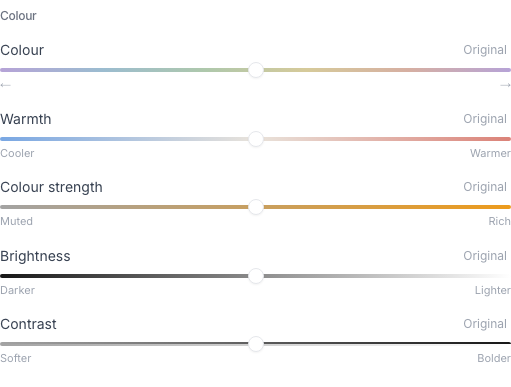
The colour controls show the direction of each adjustment. Moving a slider previews the change before you save.
Highlights & Glow
| Control | What it changes |
|---|---|
| Shine | Moves the surface from matt towards glossy. |
| Highlight colour | Changes the colour of the material’s angle-dependent highlights, where supported. |
| Highlight strength | Makes those highlights more subtle or pronounced. |
| Glow colour | Changes the colour of the soft, velvety sheen. |
| Soft glow | Makes that sheen more subtle or velvety. |
| Glow softness | Makes the sheen more focused or diffuse. It appears when soft glow is active. |
These controls change the material’s appearance; they do not change the product’s lighting. Highlight controls appear only on materials that support that effect.
Texture
| Control | What it changes |
|---|---|
| Texture detail | Makes existing surface detail smoother or more defined. It is unavailable if the material has no suitable detail maps. |
| Scale | Makes the fabric pattern up to 20% smaller or larger. It does not resize the product. |
Save your changes
The save button depends on whether your account has automatic cutout imagery enabled. Cutouts are the product images generated from your 3D models.
| Your account | Save button | What happens |
|---|---|---|
| Automatic cutouts enabled | Save draft | Updates your live 3D models. Cutouts wait for sign-off. |
| Automatic cutouts disabled | Save changes | Updates your live 3D models. No sign-off or 30-day editing lock applies. |
If you see Save draft
A saved draft is visible on your live 3D models. It is a final-check stage, not a private preview. Existing cutout images stay in place until you sign off.
- Choose Save draft.
- Read the Save this fabric as a draft? confirmation.
- Choose Save draft again, or Keep editing to return without saving.
- Check that the fabric has a Draft badge and the button says Draft saved.
- Check the fabric on your live 3D products before signing off.
You can edit and save a draft again before approval. Review & sign off is hidden while you have unsaved edits. Save them, or use Undo changes, to return to the saved draft.
If you see Save changes
- Choose Save changes.
- Wait for Changes saved.
- Check the updated fabric on your 3D products.
You can make further edits and save again without waiting 30 days. This path does not have a sign-off step.
Review and sign off a draft
Signing off starts regeneration of your account’s affected automatic cutout imagery and locks this fabric for 30 days. Review the appearance before confirming.
- Choose Review & sign off after saving your draft.
- Switch between Original and Saved draft to compare them on the same product.
- Check Changes from original. Choose Keep editing if you want to adjust anything.
- Choose Sign off fabric.
- Read the confirmation and the date editing becomes available again.
- Choose Sign off fabric to confirm.
The fabric is marked Signed off. Its settings are replaced by the sign-off date and Editing returns on date. The product preview remains available. The badge confirms approval; it does not mean every cutout has finished rendering.
The 30-day pause keeps your 3D appearance and cutout imagery consistent and avoids regenerating images after every small adjustment. You can edit other unlocked fabrics during this time. After this fabric unlocks, save another draft and sign it off when ready.
If you want to keep the original appearance, you can save and sign off without moving a slider. New fabrics still need approval before their automatic cutouts can render.
Undo changes or restore the original
These are separate actions:
- Undo changes returns to your last saved draft or saved copy. It discards only your unsaved adjustments.
- Reset to original restores the original settings saved when your account first created its copy, even after you have saved changes.
Reset to original does not save automatically. Choose Save draft or Save changes to apply the reset. If your account uses automatic cutouts, sign off the saved reset to regenerate them.
Both editing actions are unavailable during the 30-day sign-off lock.
If you cannot edit or save
- Signed off: check the Editing returns on date. The editor becomes available after the lock expires.
- This material needs setup before it can be adjusted: the material needs preparation before it can use these controls.
- No products in this account use this material yet: there is no eligible product preview for this material.
- A product cannot show the fabric: choose another product from the dropdown.
- The fabric changed in another session: reload it before saving or signing off, so you review the current version.
To change which fabrics customers can choose, use fabric visibility and discontinuation.